

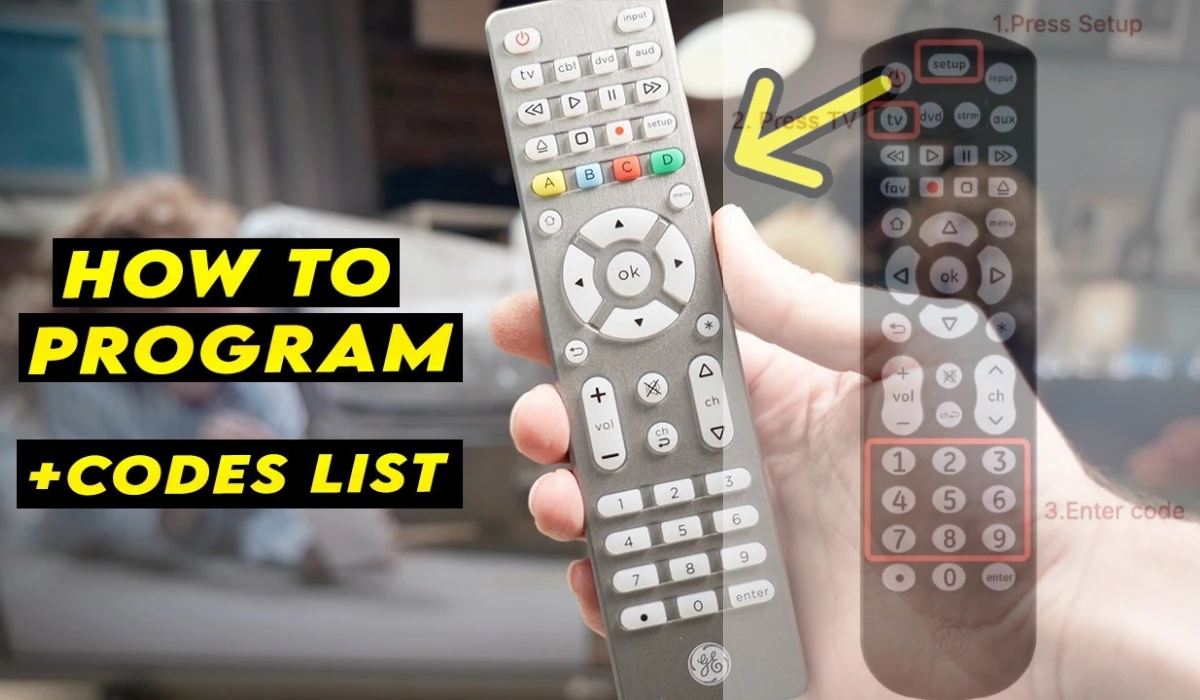
Have you ever lost your original TV remote and wondered if that universal remote sitting in your drawer could solve your problem? If you own GE electronics or a GE universal remote, you’re about to discover how simple it is to program your devices using the right codes.
GE remote codes are three, four, or five-digit numbers that allow universal remotes to communicate with your TV, DVD player, cable box, or streaming device. These codes act as a bridge between your remote and your equipment, translating button presses into commands your device understands.
This guide walks you through everything you need to know about GE remote codes, from finding the right code for your specific device to programming methods that work every time.
What Are GE Remote Codes and Why Do You Need Them?
GE remote codes are numerical sequences programmed into universal remotes to establish communication with electronic devices. When you enter the correct code, your GE universal remote “learns” how to control your television, sound system, or other equipment.
Why codes matter:
You need these codes because different manufacturers use different infrared signal patterns. Samsung TVs respond to different signals than LG or Vizio models. The code tells your GE remote which signal pattern to use.
Without the correct code, your remote sends signals your device doesn’t recognize. Press the power button, and nothing happens. Enter the right code, and suddenly every button works perfectly.
GE universal remotes can control devices from hundreds of brands. The code system makes this flexibility possible.
Types of GE Universal Remotes
GE produces several universal remote models, each with slightly different programming methods:
GE 4-Device Universal Remote: Controls TV, DVD/Blu-ray, cable/satellite box, and streaming devices. Most common model for home use.
GE 8-Device Universal Remote: Supports more devices including audio systems, game consoles, and multiple TVs. Ideal for entertainment centers.
GE 6-Device Universal Remote: Middle option balancing capacity and simplicity.
GE SimpleSet Remote: Features simplified programming with fewer buttons, designed for users who want basic functionality.
Each model comes with an instruction manual containing code lists, but these codes are also available online and continue to be updated as new device models enter the market.
How to Find Your Device’s GE Remote Code
You can locate the correct code for your device through several methods:
Check the Manual
Your GE remote’s packaging includes a code booklet listing hundreds of brands alphabetically. Find your device brand, then try each listed code until one works.
Search Online Databases
GE and third-party websites maintain searchable databases of remote codes. Enter your device brand and model number to get specific codes.
Use Auto Code Search
If you can’t find your code, your GE remote has an automatic search function that cycles through all possible codes until it finds one that works.
Check Your Device
Some televisions and equipment display their remote code in the settings menu under “Remote Control” or “System Information.”
Programming Your GE Universal Remote: Step-by-Step Methods
Method 1: Direct Code Entry
This method works when you already know your device’s code.
Step 1: Turn on the device you want to program.
Step 2: Press and hold the Setup button on your GE remote until the red indicator light stays on (usually 3-5 seconds). Then release the Setup button.
Step 3: Press the device button you want to program (TV, DVD, CBL/SAT, etc.). The red light will blink once and remain on.
Step 4: Enter the four or five-digit code using the number buttons. The red light will turn off if the code is valid.
Step 5: Point the remote at your device and press the Power button. If the device turns off, the code worked. Press Setup to lock in the code.
Step 6: Test other buttons (volume, channel, menu) to ensure full functionality.
If the device doesn’t respond, repeat the process with the next code listed for your brand.
Method 2: Code Search Method
When you don’t have the code or direct entry fails, code search helps you find the right one automatically.
Step 1: Turn on your device.
Step 2: Press and hold Setup until the red light stays on, then release.
Step 3: Press the device button (TV, DVD, etc.). The light blinks once and stays on.
Step 4: Press and release the Power button repeatedly, slowly (once per second). The remote sends a different code with each press.
Step 5: Stop pressing when your device turns off. This means you’ve found the right code.
Step 6: Press Setup to save the code. The red light will turn off.
Step 7: Turn your device back on and test the remote’s other functions.
This method takes longer but works when other approaches fail.
Method 3: Brand Code Search
This faster variation searches only codes for your specific brand.
Step 1: Turn on your device.
Step 2: Find your brand’s code in the manual and note any single code listed.
Step 3: Press and hold Setup until the red light stays on.
Step 4: Press the device button (TV, DVD, etc.).
Step 5: Enter 9-9-1. The red light blinks twice.
Step 6: Press Power repeatedly until your device turns off.
Step 7: Press Setup to lock in the code.
Common GE Remote Codes by Brand
Here are frequently used codes organized by device brand. Try these codes first before moving to code search methods.
Television Codes
| Brand | Common Codes |
| Samsung | 0178, 0019, 0056, 1060, 0060 |
| LG | 0178, 0017, 0442, 0856, 1178 |
| Vizio | 0178, 0117, 0864, 1758, 0885 |
| Sony | 0000, 0011, 0273, 0810, 0834 |
| TCL | 1756, 0091, 2434, 1407, 0803 |
| Hisense | 0178, 0004, 0216, 1660, 0748 |
| Sharp | 0093, 0165, 0386, 0491, 0688 |
| Toshiba | 0156, 0060, 1256, 0154, 0845 |
| Panasonic | 0051, 0055, 0250, 1480, 0226 |
| Insignia | 0178, 0103, 0189, 0217, 0135 |
Cable and Satellite Box Codes
| Provider/Brand | Common Codes |
| Comcast/Xfinity | 0178, 0463, 0810, 1326, 1982 |
| DirecTV | 0247, 0749, 1377, 1142, 0819 |
| Dish Network | 0775, 0505, 1005, 1170, 0724 |
| Spectrum | 0178, 0476, 1376, 1877, 0810 |
| Cox | 0178, 1376, 0463, 1982, 0810 |
DVD and Blu-ray Player Codes
| Brand | Common Codes |
| Sony | 0533, 0864, 1033, 1070, 0772 |
| Samsung | 0199, 0490, 0820, 1044, 1075 |
| LG | 0591, 0741, 0869, 1094, 0801 |
| Panasonic | 0490, 0503, 1010, 1362, 0632 |
| Toshiba | 0503, 0695, 1045, 1154, 0539 |
Streaming Device Codes
| Device | Common Codes |
| Roku | 0143, 1486, 2891, 3061, 4398 |
| Apple TV | 0227, 1115, 1614, 1743, 2011 |
| Amazon Fire TV | 0178, 2049, 2434, 2932, 3041 |
| Chromecast | Usually controlled via HDMI-CEC or phone app |
Important: These codes work with most GE universal remote models, but some newer devices may require updated codes not listed in older manuals.
Troubleshooting Common GE Remote Programming Issues
Remote Won’t Accept Code
Problem: You enter the code but the red light blinks rapidly or stays on.
Solutions:
- ): Make sure you’re pressing Setup until the light stays on (not just blinks)
- ): Press the correct device button (TV, DVD, etc.) before entering the code
- ): Try entering the code more slowly with deliberate button presses
- ): Replace the batteries with fresh ones
- ): Make sure there’s nothing blocking the remote’s infrared sensor
Device Turns Off But Other Buttons Don’t Work
Problem: The power button works but volume, channel, or menu buttons don’t respond.
Solutions:
- ): The code controls power but not other functions for your specific model
- ): Try the next code listed for your brand
- ): Use code search to find a more compatible code
- ): Some functions may require your original remote (rare with quality codes)
Code Works Then Stops Working
Problem: The remote worked yesterday but doesn’t respond today.
Solutions:
- ): Replace batteries (weak batteries cause intermittent issues)
- ): Re-enter the code (sometimes codes get cleared)
- ): Check if something is blocking the line of sight between remote and device
- ): Make sure your device’s infrared receiver isn’t damaged
Can’t Find Your Brand in Code List
Problem: Your device brand isn’t listed in the manual.
Solutions:
- ): Try codes for similar brands (many manufacturers share code sets)
- ): Use the automatic code search method
- ): Look for updated code lists on GE’s website
- ): Check if your device has an alternative brand name (some TVs are rebranded)
Remote Controls Wrong Device
Problem: Pressing TV buttons changes your cable box instead.
Solutions:
- ): You programmed the same code to multiple device buttons
- ): Clear all codes and reprogram each device separately
- ): Press the specific device button (TV, DVD, etc.) before using other buttons
- ): Make sure devices are far enough apart that infrared signals don’t overlap
Advanced Tips for GE Universal Remote Users
Programming Multiple Devices
Your GE remote can control several devices simultaneously. Program each device to its corresponding button (TV button for television, DVD button for player, etc.).
Best practice: Program your TV first, then move to secondary devices. This prevents confusion during setup.
Volume Lock Feature
Volume lock ensures your remote always controls your TV’s volume, even when using other devices.
To enable volume lock:
- 1. Press and hold Setup until the light stays on
- 2. Press 9-9-3
- 3. Press the TV button
- 4. Press Setup again
Now volume buttons control your TV regardless of which device mode you’re using.
Using Macros
Some GE remotes support simple macros where one button press performs multiple actions. Check your specific model’s manual for macro capabilities.
Resetting Your GE Remote
If you need to clear all codes and start fresh:
- 1. Press and hold Setup until the red light stays on
- 2. Press 9-8-1
- 3. The light blinks twice, confirming the reset
- 4. Reprogram all devices from scratch
GE Remote Codes for Popular TV Brands (Extended List)
Many users specifically need codes for television programming. Here’s a more comprehensive list:
Sanyo: 0054, 0154, 0088, 1142, 0799
Philips: 0054, 0171, 0690, 1454, 0037
RCA: 0000, 0047, 0051, 1047, 1147
Magnavox: 0054, 0051, 0030, 1454, 0171
Westinghouse: 0000, 0143, 0114, 1712, 0885
Element: 0178, 0885, 1687, 1886, 0706
Sceptre: 0000, 0178, 1360, 1599, 0878
JVC: 0053, 0069, 0160, 1253, 0731
Hitachi: 0145, 0056, 0679, 1145, 0797
Emerson: 0154, 0236, 0463, 1394, 0177
Haier: 0178, 1034, 1749, 0768, 1753
Maintaining Your GE Universal Remote
Battery Care
Use quality alkaline batteries rather than cheap brands. Weak batteries cause programming issues and intermittent functionality.
Replace batteries annually even if the remote still works. Degraded batteries leak and damage the remote’s circuitry.
Physical Maintenance
Clean your remote monthly with a lightly dampened cloth. Dust and grime interfere with button contacts.
Avoid dropping your remote. Impact damage can misalign infrared LEDs or crack the circuit board.
Store your remote in a cool, dry place away from direct sunlight. Heat degrades electronic components over time.
Code Backup
Write down your working codes and tape them inside the battery compartment. This saves time if you need to reprogram after battery replacement.
Take a photo of your working remote’s code list for digital backup.
When to Replace Your GE Universal Remote
Your GE remote should last years with proper care, but replace it if you notice:
Buttons stick or don’t press smoothly: Worn buttons won’t register presses consistently.
Infrared LED doesn’t light up: Check with a camera (phone cameras show infrared light). No light means the LED is dead.
Codes won’t save: Circuit board damage prevents code retention.
Cracks in the case: Broken cases allow dust and moisture inside.
Battery corrosion: Leaked batteries damage circuitry beyond repair.
GE universal remotes are affordable, typically $10-$25 depending on the model. Replacement makes more sense than struggling with a damaged remote.
Alternative Solutions and Modern Options
Using Manufacturer Remotes
Many TV manufacturers sell replacement remotes directly. These offer full functionality including smart TV features that universal remotes may not support.
Smartphone Remote Apps
Modern smart TVs work with manufacturer apps that turn your phone into a remote. These apps provide keyboard input and voice search that physical remotes can’t match.
HDMI-CEC
If your TV and devices support HDMI-CEC (Consumer Electronics Control), they can control each other through the HDMI cable. Enable this feature in your TV’s settings menu.
Voice Control
Amazon Alexa, Google Assistant, and Apple HomeKit control compatible devices through voice commands, reducing remote dependence entirely.
Frequently Asked Questions
What do I do if none of the codes work for my device?
Use the automatic code search method. Press and hold Setup, press your device button, then press Power repeatedly until your device responds. This cycles through every available code. If code search fails, your device may use a proprietary signal that GE remotes don’t support, or you may need an updated remote model with newer codes.
Can I program one GE remote to control multiple TVs?
Not simultaneously. Each device button (TV, DVD, etc.) programs to one device. You could program your TV button for one television and your DVD button for another television, but you’d need to press different device buttons to switch between them.
Why does my GE remote control my neighbor’s TV?
Infrared signals travel through windows. Your remote and your neighbor’s TV use compatible codes. Point your remote directly at your TV rather than toward walls or windows, or use physical barriers like curtains to block signal travel.
How long does it take to program a GE universal remote?
Direct code entry takes 30-60 seconds per device if you have the correct code. Code search takes 2-5 minutes as the remote cycles through possibilities. Total setup for a typical home with TV, cable box, and DVD player takes 5-15 minutes.
Do GE remote codes expire or become outdated?
Codes themselves don’t expire, but older remotes may not include codes for devices manufactured after the remote’s production. GE periodically releases updated remotes with expanded code libraries. If you have a TV from 2024 and a GE remote from 2015, you might need a newer remote model.
Can I use GE remote codes with other universal remote brands?
Not directly. Each manufacturer uses different code systems. A GE code won’t work with an RCA or One-For-All remote. However, some codes happen to match across brands accidentally. Always use manufacturer-specific code lists.
What’s the difference between 3-digit, 4-digit, and 5-digit codes?
Code length depends on your GE remote model. Older models used 3-digit codes with fewer available combinations. Newer models use 4-digit or 5-digit codes to support the growing number of device manufacturers and models. Check your remote’s manual to see which format it uses.
Will a GE universal remote work with my soundbar?
Most GE remotes include soundbar codes under the audio device category. Popular brands like Samsung, Sony, Vizio, and Bose have dedicated codes. Program your soundbar to the AUX or AUDIO button on your remote, then use volume controls normally.
Why does my remote work for some functions but not others?
You’re using a code that partially matches your device. Try the next code listed for your brand. Some codes control basic functions (power, volume, channel) while others provide access to advanced features (menu, input selection, picture settings). Code search often finds the most complete match.
Can I program my GE remote without the instruction manual?
Yes. Use the code search method which doesn’t require knowing specific codes. Turn on your device, hold Setup until the light stays on, press your device button, then press Power repeatedly until the device responds. Programming instructions are also available online by searching for your specific GE remote model number.