

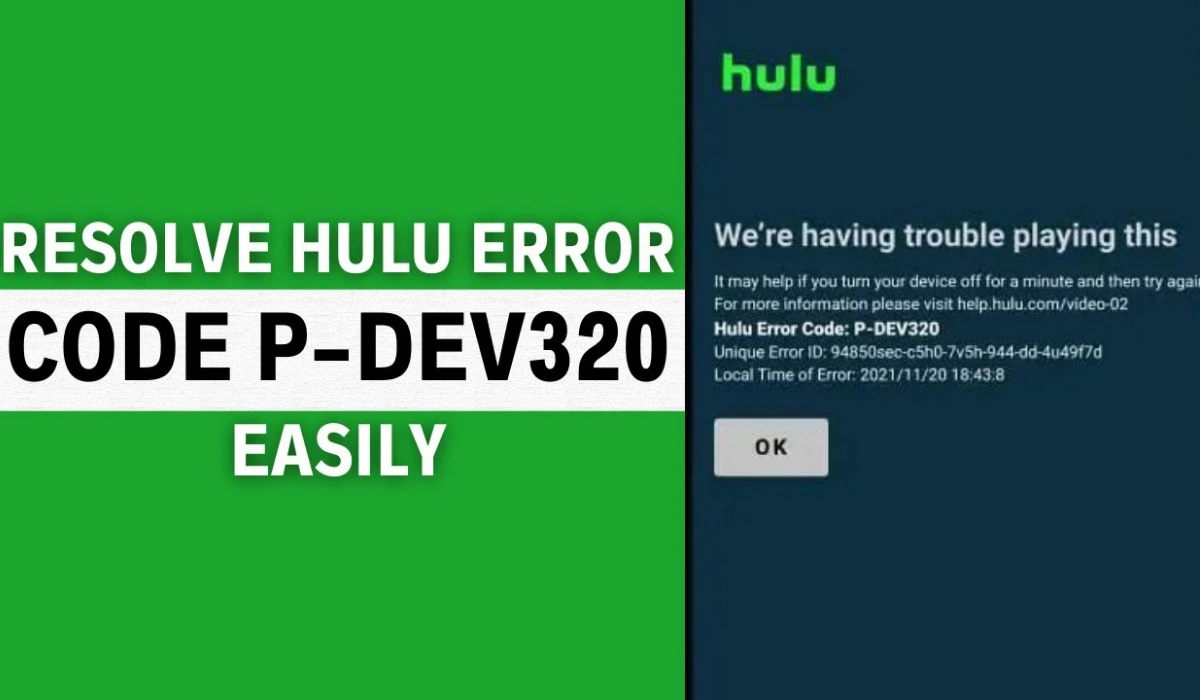
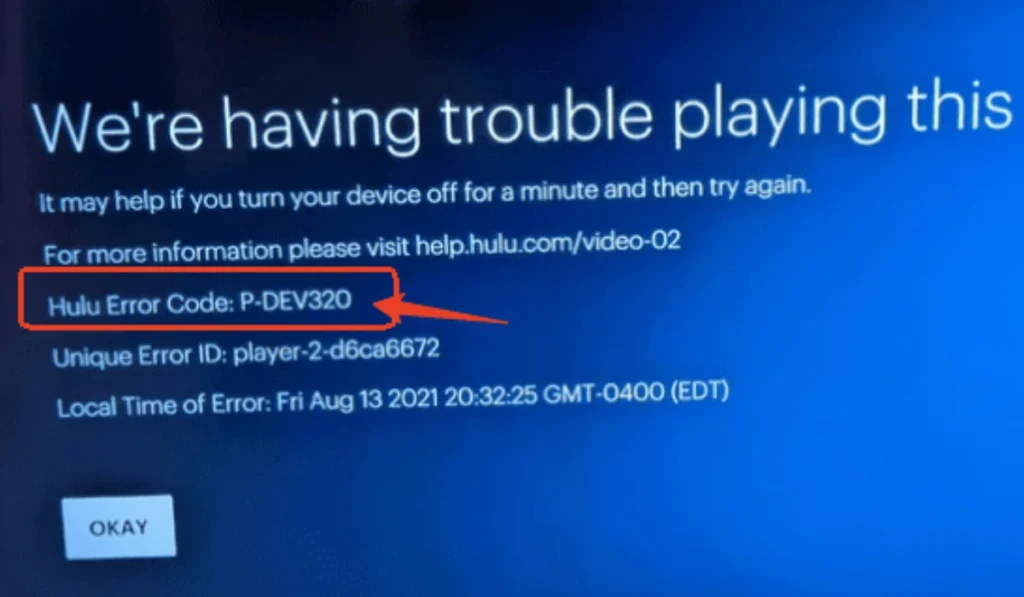
Are you seeing “We’re having trouble playing this” along with Hulu error code P-DEV320 on your screen? This frustrating playback error prevents you from watching your favorite shows, but don’t worry—it’s usually fixable in minutes.
What Is Hulu Error Code P-DEV320?
Hulu error code P-DEV320 signals a communication problem between your Hulu app and Hulu’s servers. This disruption can occur on any device including smart TVs, Roku, Fire Stick, gaming consoles, or mobile devices. The error typically appears when you try to start streaming content.
Common Causes
- ● Poor internet connection or network instability
- ● Outdated Hulu app lacking server compatibility
- ● Corrupted cache data interfering with playback
- ● Device-specific glitches or outdated firmware
- ● Temporary Hulu server issues during maintenance or high traffic
Quick Fixes for P-DEV320 Error
1. Restart Your Device and App
The simplest solution often works best. Close the Hulu app completely, then restart your streaming device. Power-cycling can be particularly helpful for resolving the P-DEV320 error.
How to power cycle:
- ● Unplug your device from power
- ● Wait 60 seconds
- ● Plug it back in and restart
- ● Open Hulu again
2. Check Your Internet Connection
Hulu requires stable internet speeds—at least 3 Mbps for standard definition and 8 Mbps for live TV. Test your connection speed and reset your router if needed.
3. Clear the Hulu App Cache
For Android/Smart TV:
- ● Go to Settings > Apps
- ● Select Hulu
- ● Tap Storage & Cache
- ● Choose “Clear Cache”
For iOS:
- ● Uninstall the Hulu app
- ● Reinstall it from the App Store (this clears cache automatically)
4. Update the Hulu App
An outdated app version can cause compatibility issues. Visit your device’s app store and check for Hulu updates. Install any available updates.
5. Reinstall Hulu
If clearing cache doesn’t work, completely uninstall Hulu, restart your device, then reinstall the app fresh from your app store.
6. Try a Different Device
Test Hulu on another device (phone, tablet, computer) to determine if the problem is device-specific or account-wide. If Hulu works elsewhere, the issue is with your original device.
7. Check Hulu Server Status
Sometimes the problem isn’t on your end. Visit Downdetector.com to see if Hulu is experiencing widespread outages. If servers are down, you’ll need to wait for Hulu to resolve the issue.
Device-Specific Solutions
Roku Users: Some users have resolved P-DEV320 by adjusting display settings. Go to Settings > Display Type and change from “Automatic” to a specific resolution without HDR.
DirecTV Stream Users: This error has been reported on C71KW-400 receivers. Try using a wired ethernet connection instead of Wi-Fi for more stability.
When to Contact Hulu Support
If you’ve tried all these fixes and still see error code P-DEV320, contact Hulu support directly at 1-888-265-6650 or through their live chat. Provide them with:
- ● Your device model
- ● When the error started
- ● Steps you’ve already taken
Prevention Tips
- ● Keep your Hulu app updated automatically
- ● Maintain a stable internet connection (consider wired over Wi-Fi)
- ● Regularly clear your app cache
- ● Update your device firmware when available
- ● Restart your streaming device weekly
Final Thoughts
Hulu error code P-DEV320 is usually a temporary connectivity or app issue that resolves quickly with basic troubleshooting. Start with the simplest fixes first—restart your device, check your internet, and clear the cache. Most users find success with these steps within minutes.
If the error persists across multiple devices, the issue is likely on Hulu’s end, and you’ll need to wait for their team to resolve server problems. Stay patient and check Hulu’s status page for updates.
Need more help? Bookmark this guide and try each solution systematically. Remember that streaming issues often resolve themselves after a simple restart—start there before diving into more complex fixes.