

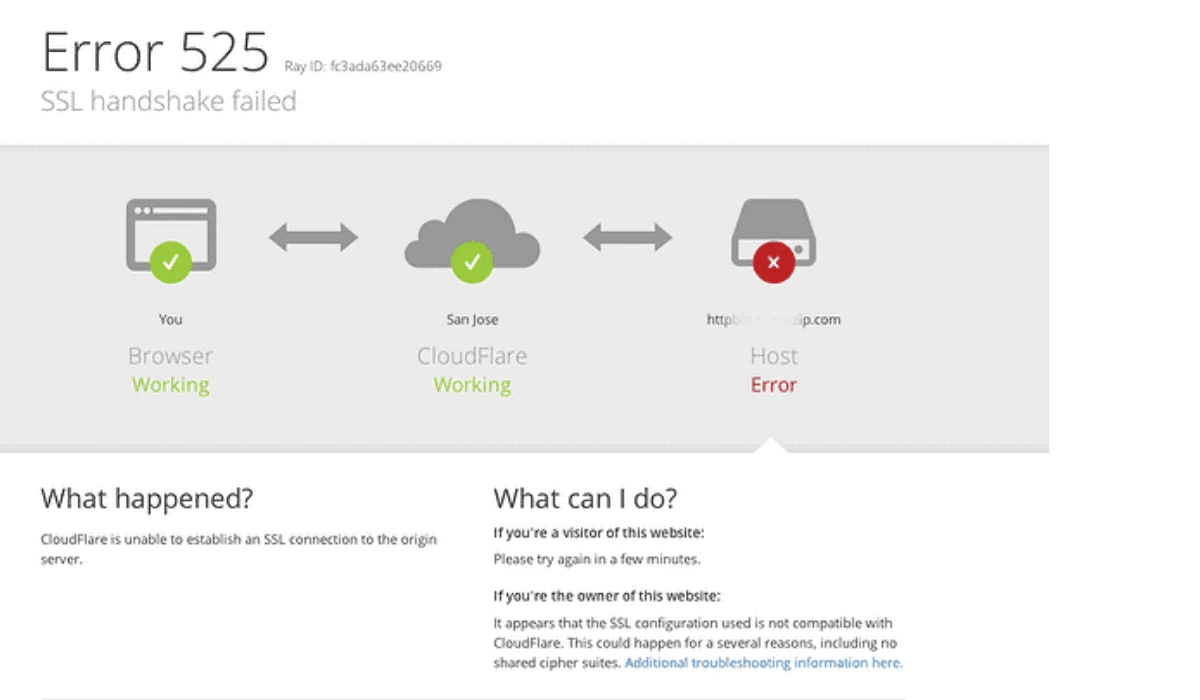
Error 525 means Cloudflare cannot establish an SSL/TLS connection with your origin server. This guide provides proven solutions to fix this Cloudflare-specific error permanently.
What is Error 525?
Error 525 occurs when the SSL handshake between Cloudflare’s edge servers and your origin web server fails. Unlike other SSL errors, this indicates the negotiation process itself broke down, not just a certificate problem.
Full error message:
SSL handshake failed
Error code 525
Why Error 525 Happens
The SSL handshake fails when:
- Your origin server doesn’t have a valid SSL certificate
- SSL/TLS protocols are mismatched between Cloudflare and origin
- Cipher suites are incompatible
- Firewall blocks SSL connections
- Wrong SSL/TLS mode in Cloudflare settings
Quick Fix (Works 70% of the Time)
Change Cloudflare SSL/TLS Mode
Step-by-step:
- Log into Cloudflare dashboard
- Select your domain
- Go to SSL/TLS → Overview
- Change encryption mode to “Flexible” (temporary fix)
- Wait 2-3 minutes for changes to propagate
- Test your website
Important: Flexible mode is NOT recommended long-term as it doesn’t encrypt traffic between Cloudflare and your server.
Permanent Solutions
1. Install Valid SSL Certificate on Origin Server
This is the proper fix for most cases.
For cPanel/WHM users:
1. cPanel → SSL/TLS Status
2. Click "Run AutoSSL"
3. Wait for certificate installation
4. Set Cloudflare to "Full" or "Full (strict)" mode
For Let’s Encrypt (Linux server):
# Install Certbot
sudo apt update
sudo apt install certbot python3-certbot-apache

# Generate certificate
sudo certbot --apache -d yourdomain.com -d www.yourdomain.com

# Certificate installs automatically
# Set Cloudflare to "Full (strict)"
For nginx:
sudo certbot --nginx -d yourdomain.com -d www.yourdomain.com
2. Set Correct SSL/TLS Mode
Choose based on your server setup:
Flexible – ❌ Not secure
- Use only if you cannot install SSL on origin
- HTTP connection between Cloudflare and server
- Temporary solution only
Full – ✓ Better
- Requires SSL on origin (self-signed OK)
- Encrypted connection throughout
- Good for development
Full (strict) – ✓✓ Best (Recommended)
- Requires valid SSL certificate on origin
- Certificate must not be expired
- Certificate must match domain name
- Most secure option
3. Fix Certificate Chain Issues
If you have an SSL certificate but still get 525:
Check certificate chain:
# Test from your server
openssl s_client -connect yourdomain.com:443 -servername yourdomain.com

# Look for "Verify return code: 0 (ok)"
# If you see error, certificate chain is incomplete
Fix for incomplete chain:
- Install intermediate certificates on your server
- Most SSL providers give you a bundle file (.ca-bundle or .crt)
- Upload bundle to your hosting control panel or concatenate manually
4. Enable TLS 1.2 or Higher on Origin
Cloudflare requires at least TLS 1.2.
Apache (.htaccess or ssl.conf):
SSLProtocol -all +TLSv1.2 +TLSv1.3
SSLCipherSuite HIGH:!aNULL:!MD5
Nginx (nginx.conf):
ssl_protocols TLSv1.2 TLSv1.3;
ssl_ciphers HIGH:!aNULL:!MD5;
Restart web server after changes:
# Apache
sudo systemctl restart apache2

# Nginx
sudo systemctl restart nginx
5. Open SSL Port on Firewall
Ensure port 443 is open on your origin server.
Check if port is blocked:
# From another machine
telnet yourserverip 443

# Or use
openssl s_client -connect yourserverip:443
Allow port 443 (Ubuntu/Debian):
sudo ufw allow 443/tcp
sudo ufw reload
cPanel/WHM CSF firewall:
1. WHM → ConfigServer Security & Firewall
2. Firewall Configuration
3. Ensure 443 is in TCP_IN and TCP_OUT
4. Restart firewall
6. Whitelist Cloudflare IPs
Your firewall might be blocking Cloudflare’s connection attempts.
Add Cloudflare IP ranges to whitelist:
- Get current IPs from: https://www.cloudflare.com/ips/
- Add to your firewall allow list
- Many hosts have “Cloudflare IP whitelist” feature
7. Check for Cipher Suite Mismatch
Test your server’s cipher suites:
nmap --script ssl-enum-ciphers -p 443 yourdomain.com
If incompatible, update server SSL configuration to include modern ciphers Cloudflare supports.
8. Verify Certificate is Not Expired
# Check expiration date
echo | openssl s_client -connect yourdomain.com:443 2>/dev/null | openssl x509 -noout -dates
Expired certificate?
- Renew through your SSL provider
- Let’s Encrypt auto-renews (check cron job)
- Most paid SSL certificates send expiration warnings
Hosting-Specific Solutions
Cloudways/DigitalOcean
- Enable “Let’s Encrypt SSL” from control panel
- Switch Cloudflare to “Full (strict)”
AWS/EC2
- Use AWS Certificate Manager
- Configure security groups to allow port 443
- Install certificate on load balancer or EC2 instance
Shared Hosting (Bluehost, HostGator, etc.)
- Use cPanel AutoSSL (free)
- Contact support to install SSL
- They should handle configuration
Custom VPS
- Install Certbot and get free Let’s Encrypt certificate
- Configure web server properly
- Ensure automatic renewal is set up
Testing Your Fix
After implementing solutions:
- SSL Labs Test: https://www.ssllabs.com/ssltest/
- Should show A or B grade
- Check for chain issues
- Cloudflare Diagnostic Center:
- In Cloudflare dashboard
- Support → Diagnostic Center
- Run test for your domain
- Browser test:
- Visit https://yourdomain.com
- Click padlock icon
- Verify certificate is valid
Prevention Checklist
✓ Set up automatic SSL renewal (Let’s Encrypt renews every 60 days)
✓ Use “Full (strict)” SSL mode in Cloudflare
✓ Monitor certificate expiration dates
✓ Keep web server software updated
✓ Document your SSL configuration
✓ Test SSL setup quarterly
Common Mistakes to Avoid
❌ Using “Flexible” mode permanently (not secure)
❌ Self-signed certificates with “Full (strict)” mode
❌ Forgetting to install intermediate certificates
❌ Blocking Cloudflare IP ranges in firewall
❌ Using outdated TLS versions (1.0 or 1.1)
Still Getting Error 525?
If solutions above don’t work:
- Temporarily pause Cloudflare:
- Cloudflare dashboard → Overview
- Click “Pause Cloudflare on Site”
- Test if site loads on HTTPS directly
- This helps identify if issue is Cloudflare or origin
- Check Cloudflare SSL settings:
- Disable “Always Use HTTPS” temporarily
- Turn off “Automatic HTTPS Rewrites”
- Test again
- Review origin server logs:
- Apache:
/var/log/apache2/error.log - Nginx:
/var/log/nginx/error.log - Look for SSL handshake failures
- Apache:
- Contact support:
- Cloudflare Community: https://community.cloudflare.com
- Your hosting provider’s support team
- Provide SSL test results from SSL Labs
Technical Summary
Error 525 = SSL handshake failure between Cloudflare and origin. Fix by:
- Installing valid SSL certificate on origin server
- Setting Cloudflare to appropriate SSL/TLS mode
- Ensuring TLS 1.2+ is enabled
- Opening port 443 and whitelisting Cloudflare IPs
- Using “Full (strict)” mode for maximum security
Best practice: Use Let’s Encrypt (free) + Full (strict) mode for proper end-to-end encryption.
FAQs About ssl handshake failed error code 525
What causes Cloudflare Error 525?
Cloudflare Error 525 happens when Cloudflare can’t complete an SSL handshake with your origin server, usually due to missing or invalid SSL certificates, TLS mismatches, or firewall blocks.
Is Cloudflare Error 525 from my server or Cloudflare?
Error 525 is almost always caused by an issue on your origin server, not Cloudflare. The server is failing to respond with a valid SSL handshake.
Does Flexible SSL cause Error 525?
Yes. Using Flexible SSL can trigger Error 525 because the origin server expects HTTPS while Cloudflare sends HTTP. Full or Full (strict) mode is recommended.
How do I fix Cloudflare Error 525 quickly?
Install a valid SSL certificate on your origin server, then set Cloudflare to Full (strict). In many cases, switching SSL mode temporarily clears the error.
Can an expired SSL certificate cause Error 525?
Yes. If your server’s SSL certificate is expired or invalid, Cloudflare cannot complete the handshake, resulting in a 525 error.