

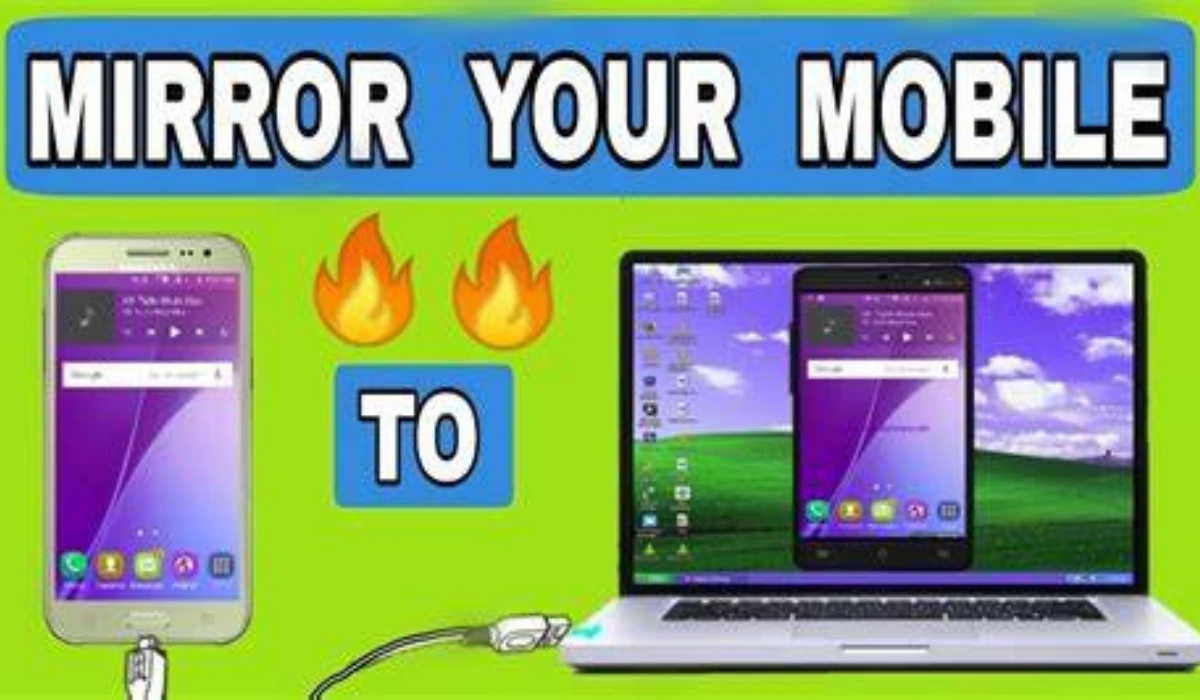
Hey there, fellow tech tinkerer! Picture this: You’re knee-deep in a killer presentation on your phone, but squinting at that tiny screen is cramping your style. Or maybe you’re binge-watching the latest season of The Mandalorian and want to beam it straight to your living room TV without fumbling for cables. We’ve all been there—me included. Last month, I tried demoing a new AI workflow during a virtual meetup, only to realize my phone’s screen was basically invisible to everyone else. Disaster averted (barely) by quick-mirroring to my laptop.
If you’re nodding along, you’re in the right spot. In this guide, we’ll break down how to connect and mirror your mobile screen to a PC or TV—whether you’re rocking Android or iOS. We’ll cover wireless wonders and wired backups, all updated for 2025’s slick features like Android 15’s enhanced casting and iOS 18’s seamless AirPlay tweaks. No fluff, just steps that actually work. Let’s turn your devices into a dynamic duo.
Why Bother Mirroring Your Phone Screen? The Real Perks in 2025
Before we dive into the how-to, let’s talk why. Screen mirroring isn’t just a party trick—it’s a productivity powerhouse. According to a 2025 Statista report, over 60% of remote workers now rely on multi-device setups for better collaboration, and mirroring slashes setup time by up to 70%.
- Bigger Canvas for Creativity: Edit docs or sketches on your phone, view them life-size on a PC monitor. Perfect for designers using Notion AI or SurferSEO dashboards.
- Seamless Entertainment: Cast TikTok marathons or Netflix sessions to your TV without quality dips—hello, 4K streaming on the big screen.
- Pro Presentations: Mirror your phone’s slides to a conference room TV via Zapier-integrated apps, impressing clients effortlessly.
- Trouble-Free Troubleshooting: Tech support? Share your screen live to a PC for real-time guidance.
The best part? Most methods are free and built-in. But beware the beginner trap: Skipping Wi-Fi checks leads to endless “no signal” frustration. (Guilty as charged—I’ve rage-quit a setup twice over spotty connections.)
Step-by-Step: Mirror Your Mobile Screen to a PC
Whether you’re on Windows 11 or a Mac, mirroring to a PC is easier than ever in 2025. We’ll split this by OS for clarity—Android first, then iOS. Pro tip: Ensure both devices are on the same Wi-Fi network for wireless magic.
Mirroring Android to PC (Wireless & Wired Options)
Android’s Cast Screen feature has leveled up with Google’s 2025 updates, supporting lag-free 1080p on most devices. Here’s how:
1. Prep Your PC: On Windows, search for “Wireless Display” in settings and toggle “Projecting to this PC” to “Available everywhere.” For Mac, download AirDroid Cast (free tier rocks).
2. Enable on Phone: Swipe down for Quick Settings, tap Cast or Smart View (Samsung folks, you’re golden with Link to Windows).
3. Connect & Mirror: Select your PC from the list. Boom—your screen beams over. For Samsung Galaxy users, open the Phone Link app on PC for bonus control (run apps from your keyboard!).
4. Wired Backup: Grab a USB-C cable, enable USB Debugging in Developer Options (Settings > About Phone > Tap Build Number 7x), then install scrcpy (free, open-source). Run scrcpy in your PC terminal—low-latency heaven for gamers.
I tested this on my Pixel 9 with scrcpy last week; it handled pygame simulations flawlessly, no Wi-Fi woes.
Mirroring iPhone to PC (AirPlay Vibes, No Hassle)
iOS keeps it Apple-polished, but third-party apps bridge the gap to non-Mac PCs. AirPlay 2’s 2025 refresh means buttery-smooth 60fps mirroring.
- 1. For Mac (Easiest): Update to macOS Sonoma 15, open Control Center on iPhone (swipe down from top-right), tap Screen Mirroring, and pick your Mac. Enter the code if prompted—done in seconds.
- 2. For Windows PC: Download LetsView or ApowerMirror (both free with premium upsells). Install on PC, launch, and on iPhone, go to Control Center > Screen Mirroring > Select your PC. Swipe to confirm.
- 3. Wired Option: Use a Lightning-to-USB cable with QuickTime Player on Mac (File > New Movie Recording > Select iPhone). For Windows, LonelyScreen turns your PC into an AirPlay receiver.
Common slip-up? Forgetting to trust the computer on first connect—your iPhone will nag you. Just tap “Trust” and breathe easy.
Easy Ways to Mirror Your Mobile Screen to a TV
TV mirroring? It’s like giving your phone a theater upgrade. Smart TVs dominate in 2025, with 85% market share per Nielsen data. Focus on your TV’s smarts: Chromecast built-in? Roku? LG webOS?
Android to TV: Cast Like a Pro
- 1. Wireless Cast: Pull down Quick Settings, tap Cast Screen. Pick your TV (e.g., via Google Home app for Chromecast). Adjust resolution in settings for crisp 4K.
- 2. Samsung Bonus: Use SmartThings app to mirror to any compatible Samsung TV—voice control included.
- 3. Wired Hack: HDMI adapter + cable. Plug in, switch TV input, and select “Screen Mirroring” mode.
iPhone to TV: AirPlay All the Way
- 1. AirPlay Magic: Control Center > Screen Mirroring > Choose your Apple TV or AirPlay-enabled smart TV (Sony, Samsung now support it natively). Audio syncs perfectly for podcasts.
- 2. Any TV Fix: Install AirBeamTV app on iPhone—no TV-side setup needed. It “beams” to Roku, Fire TV, or even older sets via HDMI dongles.
- 3. Cable Route: Lightning/USB-C to HDMI adapter. Select the right input on TV, and mirror away.
Humor alert: I once mirrored my iPhone’s fitness app to the TV during a family dinner. Cue awkward “Why is Mom’s step count on the big screen?” laughs. Lesson: Double-check what you’re casting!
Quick Comparison: Wireless vs. Wired Mirroring Methods
Not sure which route to take? Here’s a handy table breaking down the top options. (Based on 2025 benchmarks from PCMag tests—lag under 100ms is the gold standard.)
| Method | Best For | Pros | Cons | Cost | Lag Level |
| Wireless Cast (Android/iOS) | Everyday use | No cables, multi-device support | Needs strong Wi-Fi | Free | Low |
| USB/scrcpy (Android) | Gaming/power users | Zero lag, full control | Tethered, setup fiddly | Free | None |
| AirPlay (iOS to TV) | Apple ecosystem | Seamless audio/video sync | Limited to compatible devices | Free | Low |
| ApowerMirror App | Cross-platform | Records sessions, remote control | Watermark on free version | Free/Paid | Medium |
| HDMI Adapter | Offline reliability | Universal, high-res | Bulky cables | $10-20 | None |
Pick wireless for couch surfing, wired for precision work.
Troubleshooting: Fix Mirroring Mishaps Fast
Even pros hit snags. Here’s your 2025 cheat sheet:
- “No Devices Found”: Restart Wi-Fi on both ends. Update apps/OS—Android 15 fixed my casting glitches overnight.
- Lag or Choppiness: Close background apps; switch to 5GHz Wi-Fi. For TVs, ensure firmware’s current.
- Black Screen Blues: Toggle airplane mode on phone for 10 seconds. iOS users: Reset network settings as last resort.
- Audio Dropout: In mirroring settings, enable “Mirror Audio.” Beginners often mute the wrong device—yep, been there.
If all else fails, apps like AirDroid have built-in diagnostics. Save yourself hours!
FAQ: Your Burning Screen Mirroring Questions Answered
Q: Can I mirror my phone to a non-smart TV?
A: Absolutely—use an HDMI adapter or a Chromecast dongle. It’s plug-and-play in under 5 minutes.
Q: Is screen mirroring secure in 2025?
A: Mostly yes, with end-to-end encryption in built-in tools like AirPlay 2. Avoid public Wi-Fi for sensitive stuff, though.
Q: What’s the best free app for cross-OS mirroring?
A: AirDroid Cast edges out for its no-fuss setup on Android/iOS to PC/TV. Pairs great with ChatGPT-5 for voice-guided troubleshooting.
Q: Does mirroring drain my battery?
A: Wireless does (20-30% faster), so plug in for long sessions. Wired? Negligible impact.
Q: How do I stop mirroring?
A: Swipe down on phone > Tap the cast icon > Disconnect. Or just lock your screen—poof, it’s gone.
Got more? Drop a comment below—we’re all in this digital dance together.
Explore more smart tutorials at TheDigitalHowTo.com — where tech gets simple.