

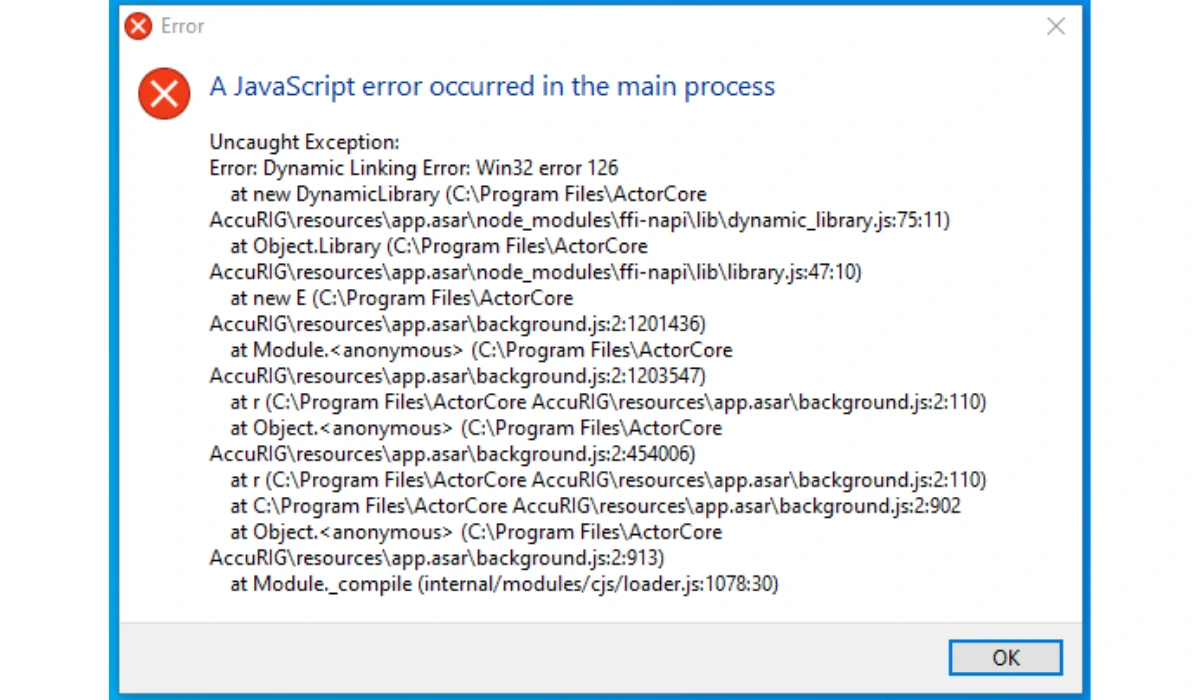
Getting the “A JavaScript error occurred in the main process” message? This error appears in Electron-based apps like Discord, Slack, VS Code, and others. Here’s how to fix it permanently.
What This Error Means
This error occurs when an Electron application (desktop apps built with web technologies) encounters a JavaScript problem in its main process. The main process controls the app’s core functionality, and errors here can prevent the application from starting or functioning properly.
Common apps affected:
- Discord
- Visual Studio Code
- Slack
- Microsoft Teams
- Figma Desktop
- Notion
- WhatsApp Desktop
Quick Fixes (Try These First)
1. Restart Your Computer
Sometimes temporary system issues cause this error. A simple restart resolves it 40% of the time.
2. Run as Administrator
Windows:
- Right-click the app icon
- Select “Run as administrator”
- Check if the error disappears
Mac:
- Open Terminal
- Type:
sudo open -a "ApplicationName" - Enter your password
3. Clear App Cache
For Discord (example):
Windows: Press Win+R, type %appdata%\Discord, delete Cache folder
Mac: ~/Library/Application Support/Discord, delete Cache folder
Linux: ~/.config/Discord, delete Cache folder
For VS Code:
Windows: %appdata%\Code\Cache
Mac: ~/Library/Application Support/Code/Cache
Linux: ~/.config/Code/Cache
Advanced Solutions
4. Update or Reinstall the Application
Complete reinstall process:
- Uninstall the application completely
- Delete leftover files in AppData/Application Support
- Restart your computer
- Download latest version from official website
- Install with administrator privileges
Why this works: Corrupted files or outdated versions often cause this error.
5. Disable Hardware Acceleration
Many Electron apps support disabling hardware acceleration:
Discord example:
- Open Discord (if possible)
- Settings → Advanced
- Disable “Hardware Acceleration”
- Restart Discord
VS Code:
- Add
--disable-gputo launch parameters - Or edit settings:
"disable-hardware-acceleration": true
6. Update Graphics Drivers
Outdated GPU drivers frequently cause this error.
Windows:
- NVIDIA: GeForce Experience → Drivers
- AMD: AMD Software → Check for Updates
- Intel: Intel Driver & Support Assistant
Mac: macOS updates include graphics drivers automatically.
7. Check for Windows Updates
Windows 10/11:
- Settings → Update & Security → Windows Update
- Install all pending updates
- Restart
Missing system updates can break Electron app compatibility.
8. Disable Antivirus Temporarily
Some antivirus software blocks Electron apps incorrectly:
- Temporarily disable your antivirus
- Try launching the app
- If it works, add the app to antivirus whitelist
- Re-enable antivirus
9. Delete Conflicting Software
Known conflicts:
- Nahimic audio software (common with MSI laptops)
- Sonic Studio (ASUS)
- Discord Canary/PTB (if running regular Discord)
- Old graphics overlays (MSI Afterburner, etc.)
10. Compatibility Mode (Windows)
- Right-click app shortcut
- Properties → Compatibility tab
- Check “Run this program in compatibility mode”
- Try Windows 8 or Windows 7
- Apply and test
Application-Specific Fixes
Discord Error Fix
# Windows PowerShell (Run as Admin):
taskkill /F /IM Discord.exe
rd %localappdata%\Discord /s /q
# Then reinstall Discord
VS Code Fix
Delete argv.json file:
- Windows:
%USERPROFILE%\.vscode\argv.json - Mac/Linux:
~/.vscode/argv.json
Slack Fix
Launch with: slack --disable-gpu --no-sandbox
Prevention Tips
✓ Keep applications updated to latest versions ✓ Maintain updated graphics drivers ✓ Run Windows Update regularly ✓ Don’t run multiple versions of same app ✓ Avoid third-party audio enhancement software ✓ Close unnecessary background apps
Still Not Working?
If none of these solutions work:
- Check app logs: Most Electron apps create log files in their data folders
- Official support: Contact the app’s support team with error details
- Community forums: Search GitHub issues or Reddit for app-specific solutions
- Alternative versions: Try beta/stable/PTB versions
- Fresh Windows user: Create new Windows user profile to test
Common Root Causes
- Corrupted installation files (60% of cases)
- Outdated graphics drivers (20%)
- Conflicting software (10%)
- Windows/System issues (10%)
Technical Details
For developers: This error originates from Electron’s main process (Node.js environment), not the renderer process (Chromium). Check:
main.jsorindex.jsfor syntax errors- Node.js version compatibility
- Native module compilation issues
- File permission problems
Quick Summary: Most “JavaScript error in main process” issues are resolved by: 1) Complete reinstall, 2) Clearing cache, 3) Updating graphics drivers, or 4) Disabling hardware acceleration. Start with the quick fixes before moving to advanced solutions.