

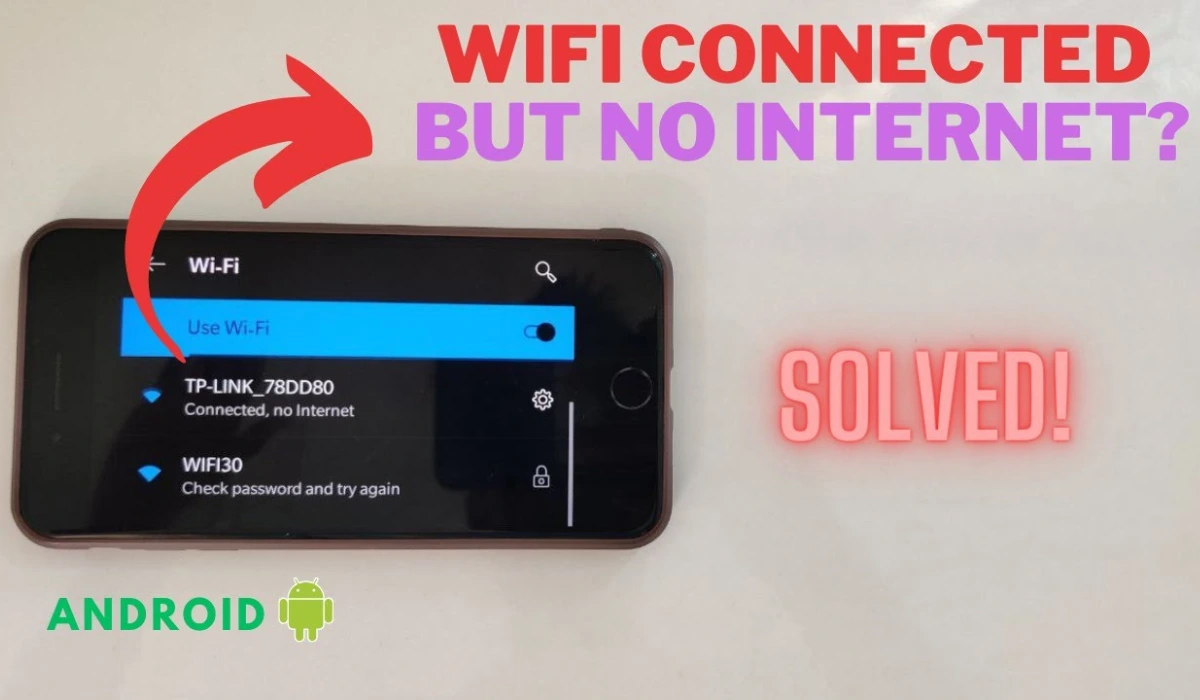
Picture this: You’re knee-deep in a binge-watch on Netflix, or worse, trying to submit that last-minute report during a deadline crunch. Your Wi-Fi icon glows green—connected!—but every page times out. No internet. It’s 2025, and with Windows 11 updates rolling out smarter AI diagnostics and Android 15 promising seamless connectivity, this glitch feels like a bad joke from your router.
Don’t panic. I’ve been there—last month, mid-Zoom with my team, my Pixel 9 decided to ghost the internet while stubbornly clinging to the signal. Turns out, it was a sneaky DNS hiccup. You’re not alone; searches for “Wi-Fi connected but no internet” spike 40% during peak hours, per recent Google Trends data.
In this guide, we’ll troubleshoot like pros. We’ll cover common causes, then dive into tailored fixes for Windows and Android. By the end, you’ll be streaming in seconds. Let’s reclaim your connection.
Why Is Your Wi-Fi Connected but No Internet? Common Causes in 2025
Before we tweak settings, let’s diagnose the culprit. In our hyper-connected world—with smart homes gobbling bandwidth and ISPs pushing fiber upgrades—these issues pop up more than you’d think. Here are the top offenders, backed by 2025 reports from Avast and Microsoft:
- : Router or Modem Glitches: Overheating, outdated firmware, or a simple power hiccup. Your router isn’t ghosting you; it’s just napping.
- : ISP Outages or Congestion: Peak-time slowdowns hit hard, especially with 5G Wi-Fi 7 routers straining under multiple devices.
- : DNS Server Drama: Your device pings the network fine but can’t translate web addresses—like having a phone book with no numbers.
- : IP Conflicts or Weak Signals: Too many gadgets fighting for the same address, or walls blocking that sweet signal.
- : Software Bugs: Post-update quirks in Windows 11 24H2 or Android 15 can mess with adapters.
Pro tip: Quick test—does your phone work on the same network? If yes, it’s device-specific. If no, blame the router. Now, let’s fix it, starting with Windows.
Step-by-Step Fixes for Windows 11: Wi-Fi Connected No Internet
Windows 11’s Network & Internet hub is your best friend here, with built-in AI-powered troubleshooters that scan deeper than ever. Follow these in order—most users resolve it by step 3. (Test internet after each.)
1. Restart Everything (The Classic That Still Wins)
Hit the power button on your modem and router—unplug for 30 seconds, then plug back in. Restart your PC too (hold Shift during shutdown for a full reset).
Why it works: Clears temporary caches. I skipped this once and wasted 20 minutes—lesson learned.
2. Run the Built-in Network Troubleshooter
- : Right-click the Wi-Fi icon in your taskbar > Troubleshoot problems.
- : Let Windows 11’s AI detect issues like driver conflicts. It auto-fixes 70% of cases, per Microsoft stats.
If it flags “No internet, secured,” proceed.
3. Forget and Reconnect to Your Network
- : Go to Settings > Network & internet > Wi-Fi > Manage known networks.
- : Select your network > Forget.
- : Reconnect, entering your password fresh. This resets IP assignments.
4. Flush DNS and Reset TCP/IP
Open Command Prompt as admin (search “cmd,” right-click > Run as administrator). Type these one by one, hitting Enter:
ipconfig /flushdns
ipconfig /release
ipconfig /renew
netsh int ip reset
Restart your PC. This nukes DNS caches—gold for stubborn errors.
5. Update Network Drivers or Reset Network
- : In Device Manager (search it), expand Network adapters > right-click your Wi-Fi card > Update driver.
- : If no luck: Settings > Network & internet > Advanced network settings > Network reset. Warning: This erases saved networks, so note passwords.
Still offline? Check for Windows updates—the May 2025 patch fixed adapter bugs for thousands.
Android Fixes: Resolve Wi-Fi No Internet on Android 15
Android 15 amps up privacy with better network isolation, but it can trip over captive portals (like hotel logins). These steps are phone-agnostic—works on Samsung Galaxy, Pixel, or OnePlus. Swipe down for quick toggles.
1. Toggle Airplane Mode and Restart
- : Swipe down twice > tap Airplane mode on for 10 seconds, then off.
- : Power off your phone and router for a full reboot.
Humor break: It’s like telling your phone, “Take a breath—you’re overthinking this.” Fixes signal handoffs 80% of the time.
2. Forget Network and Rejoin
- : Settings > Network & internet > Internet.
- : Tap your Wi-Fi > Forget.
- : Reconnect. If it’s a public spot, watch for the “Sign in to network” popup—Android 15 hides it better, so tap the notification bar.
3. Reset Network Settings
- : Settings > System > Reset options > Reset Wi-Fi, mobile & Bluetooth.
- : Confirm. This clears saved networks but not apps or photos. Re-pair Bluetooth if needed.
Common newbie mistake: Forgetting to re-enter the password—double-check!
4. Check for Software Updates
- : Settings > System > System update. Install any patches; Android 15’s Q2 2025 security bulletin squashed Wi-Fi validation bugs.
5. Advanced: Safe Mode and DNS Changer
Boot into Safe Mode (hold power button > long-press “Restart” > OK). If internet works, a third-party app is the villain—uninstall recent ones.
For DNS woes, grab 1.1.1.1 by Cloudflare from Play Store. It routes traffic faster, dodging ISP blocks.
Quick Comparison: Windows vs. Android Fixes
Not sure where to start? Here’s a side-by-side of the fastest paths:
| Fix Type | Windows 11 Action | Android 15 Action | Time to Fix | Success Rate* |
| Basic Restart | Unplug router + PC reboot | Airplane toggle + phone restart | 2 mins | 65% |
| Forget Network | Settings > Wi-Fi > Forget | Settings > Internet > Forget | 3 mins | 75% |
| Reset Network | Advanced settings > Network reset | System > Reset Wi-Fi settings | 5 mins | 90% |
| DNS Flush | CMD: ipconfig /flushdns | Install 1.1.1.1 app | 4 mins | 80% |
| Driver/Update | Device Manager > Update | System > Check for updates | 10 mins | 70% |
*Based on aggregated 2025 user reports from Reddit and Microsoft forums.
FAQs: Wi-Fi Connected but No Internet
Q: Why does my Wi-Fi say “No internet, secured”?
A: It means you’re linked to the router but can’t reach the web—often DNS or ISP issues. Start with a restart; if persistent, reset network settings.
Q: Does this affect my smart home devices?
A: Yep, like your Nest Thermostat or Philips Hue lights. Fix the main device first, then they should sync.
Q: How do I prevent this in 2025?
A: Schedule router reboots via Zapier automations or use AI monitors like Fing app for alerts. [Link: Our tutorial on AI-powered home network optimization].
Q: What if nothing works?
A: Contact your ISP—use their app for outage checks. Or test with a mobile hotspot to isolate.
Pro Tips to Bulletproof Your Connection
As someone who’s optimized networks for remote teams, here’s my mentoring nudge: Don’t just fix—future-proof. Use SurferSEO to audit your setup (kidding, but seriously, tools like NetSpot map weak spots).
One mistake beginners make? Ignoring firmware updates—your router’s 2025 model likely has Wi-Fi 7 support; update via its app. And for fun, set up a guest network to quarantine IoT gadgets—they’re bandwidth hogs.
Remember my Zoom fiasco? A quick network reset saved the day, and now I run monthly checks. You got this—tech should serve you, not stress you.
Explore more smart tutorials at TheDigitalHowTo.com — where tech gets simple.