

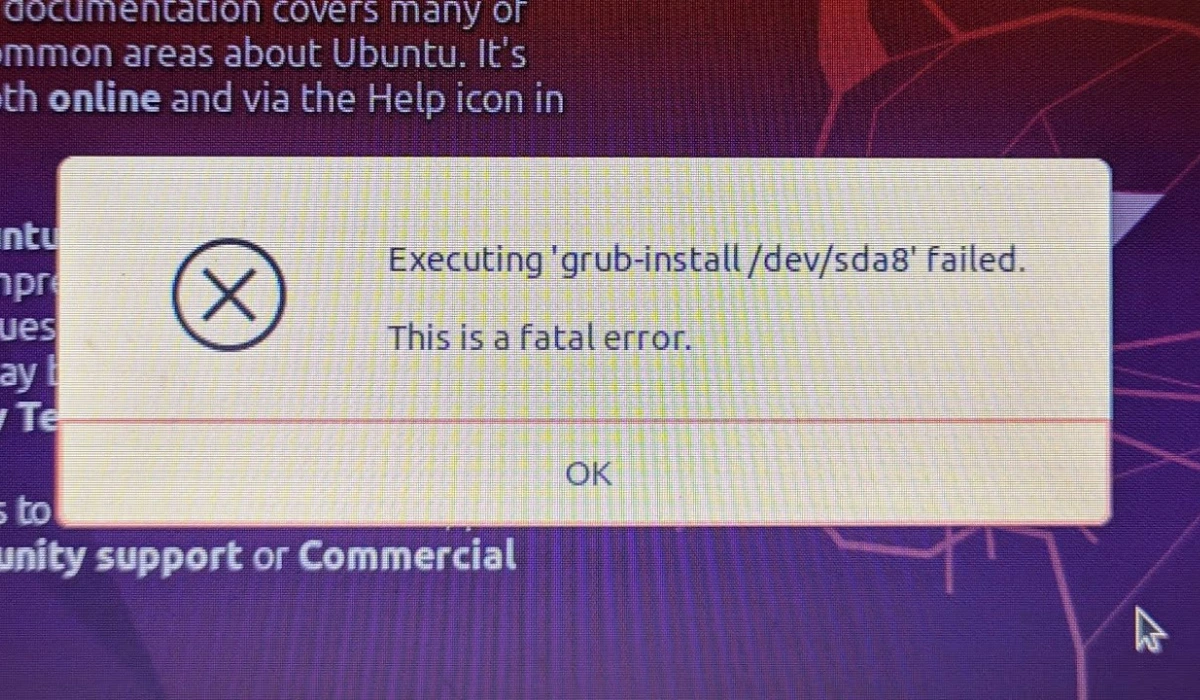
Installing Ubuntu should be straightforward, but errors can occur. This guide covers the most common Ubuntu installation errors and their proven solutions.
Most Common Ubuntu Installation Errors
1. “Unable to Install GRUB” Error
What it means: The bootloader installation failed, preventing Ubuntu from booting.
Quick fix:
● Ensure your boot partition is at least 500MB
● Use GPT partition table for UEFI systems, MBT for legacy BIOS
● Disable Secure Boot in BIOS settings temporarily
● Select the correct disk for bootloader installation (usually /dev/sda)
2. Disk Space Errors
Symptoms: “Not enough free space” or partition errors during installation.
Solution:
● Ubuntu requires minimum 25GB free space (50GB recommended)
● Use GParted to shrink existing partitions before installation
● Delete unnecessary files or partitions
● Check if you’re installing on the correct drive
3. “Installation Failed” With Kernel Panic
Common causes: Hardware incompatibility or corrupted ISO file.
Fix steps:
1. Verify your ISO file using SHA256 checksum
2. Re-download Ubuntu from official website
3. Use a different USB creation tool (Rufus, Etcher, or dd command)
4. Try the LTS version for better hardware compatibility
5. Boot with nomodeset option
4. Black Screen After Installation
Why it happens: Graphics driver conflicts, especially with NVIDIA cards.
Resolution:
● Boot into recovery mode
● Select “nomodeset” from GRUB menu
● After booting, install proprietary graphics drivers
● Update kernel to latest version
5. WiFi Not Detected After Install
Problem: Missing wireless drivers during installation.
How to fix:
● Use ethernet connection initially
● Run: sudo apt update && sudo apt install ubuntu-drivers-common
● Install drivers: sudo ubuntu-drivers autoinstall
● Reboot system
6. Dual Boot Issues with Windows
Error messages: “Operating system not found” or Windows won’t boot.
Troubleshooting:
● Disable Fast Startup in Windows before installing Ubuntu
● Install Ubuntu second (after Windows)
● Use Boot-Repair tool to fix GRUB issues
● Ensure Windows and Ubuntu use same boot mode (UEFI or Legacy)
Prevention Tips
✓ Backup your data before installation ✓ Verify ISO checksum to ensure file integrity ✓ Check hardware compatibility on Ubuntu’s certified hardware list ✓ Create installation media properly using official tools ✓ Disable Secure Boot if experiencing boot issues ✓ Use stable LTS releases for fewer compatibility problems
Emergency Boot Repair
If Ubuntu won’t boot after installation:
# Boot from live USB, then:
sudo add-apt-repository ppa:yannubuntu/boot-repair
sudo apt update
sudo apt install boot-repair
boot-repair
When to Try Alternative Approaches
If standard installation keeps failing:
● Try Ubuntu minimal installation option
●Use alternative Ubuntu flavors (Xubuntu, Lubuntu)
● Install in VirtualBox first to test
● Check Ubuntu forums for hardware-specific issues
Getting More Help
● Ubuntu Forums: Ask the community at askubuntu.com
● Bug Reports: Report persistent issues at bugs.launchpad.net
● IRC Chat: #ubuntu channel on Libera.Chat
● Documentation: help.ubuntu.com
Key Takeaway
Most Ubuntu installation errors stem from boot configuration, disk space, or hardware compatibility. Start with basic solutions (verify ISO, check BIOS settings) before attempting advanced fixes. The Ubuntu community is highly active and helpful for persistent issues.
FAQs About Ubuntu Install Errors
1. Why does Ubuntu fail to install?
Ubuntu often fails to install because of a corrupted ISO, wrong BIOS mode (UEFI/Legacy), bad USB media, or partitioning errors. Verifying the ISO, recreating the USB, and matching the boot mode usually fixes it.
2. How do I fix GRUB installation failure?
GRUB fails when the bootloader is installed to the wrong disk or the system uses the wrong partition table. Disable Secure Boot, select the correct drive (usually /dev/sda), and run Boot-Repair if needed
3. Why does Ubuntu show a black screen after install?
A black screen is typically caused by graphics driver issues, especially with NVIDIA GPUs. Boot with nomodeset, install the correct driver, and reboot.
4. Why isn’t WiFi working after installing Ubuntu?
Ubuntu may be missing wireless drivers for your WiFi card. Connect with Ethernet and run:
sudo ubuntu-drivers autoinstall
Then reboot.
5. Why doesn’t Ubuntu show up in the boot menu?
This happens when Windows Fast Startup overrides boot entries or GRUB installs incorrectly. Disable Fast Startup and use Boot-Repair to restore GRUB.
6. Why does Ubuntu say “Not enough space?”
The installer can’t use space that is unallocated, locked, or part of a Windows dynamic disk. Use GParted to create proper partitions before reinstalling.